How to make your iPhone boring in the evening
TL;DR: How your iPhone can protect your Sleep, Attention and Screentime – by setting up an automatic Black & White Filter from Sunset to Sunrise.
Phones are designed to grab your attention with bright colors and engaging visuals. App logos and notifications are engineered to lure you in, even when you didn’t intend to use your phone. Red Badges and blinking notifications will always catch your interest. This effect becomes even more pronounced at night, when offline colors fade, or during gray, dreary weather.
Greyscaling your iPhone has Benefits
But why is this a problem? Your phone’s visual appeal can have unintended consequences:
- Disrupted Sleep: Bright screens and colors can interfere with your natural sleep patterns.
- Divided Attention: Your focus might be needed elsewhere, such as during work, conversations, or relaxation.
- Increased Screen Time: You may find it hard to put your phone down, even when you don’t need it.
Automatic Black and White Display on iPhone
A simple solution is to enable Black and White Mode using your phone’s pre-installed color filters. While this can be frustrating in the daylight, it’s good idea to schedule it with Shortcuts automations.
Research showed that participants using grayscale mode spent less time on their phones and felt less of a need to use them. The 2023 study by Wickord and Quaiser-Pohl found that changing a smartphone to grayscale is an effective intervention to reduce problematic smartphone use (PSU). [Wickord & Quaiser-Pohl, 2023 – Suffering from problematic smartphone use? Why not use grayscale setting as an intervention! – An experimental study]
An automated greyscale like this can help you to battle disrupted sleep, guide your attention and lower your Screentime - because your phone just won’t be as attractive without color in the night.
With the help of automations in your Shortcuts App, you can make this process of automated greyscale seamless and tailored to your needs. You could make your iPhone black and white on a schedule, greyscaling it on sunset or at night.
To make an iPhone black and white produces also the satisfying side-effect that everything you watch on your phone will feel a bit oldtimey, if you are into that kind of cozy nostalgia.
How to automatically Set Up Black and White Mode with Shortcuts Automations on iOS 27+
Follow these steps to automate its activation and deactivation:
Step 1: Download these automations
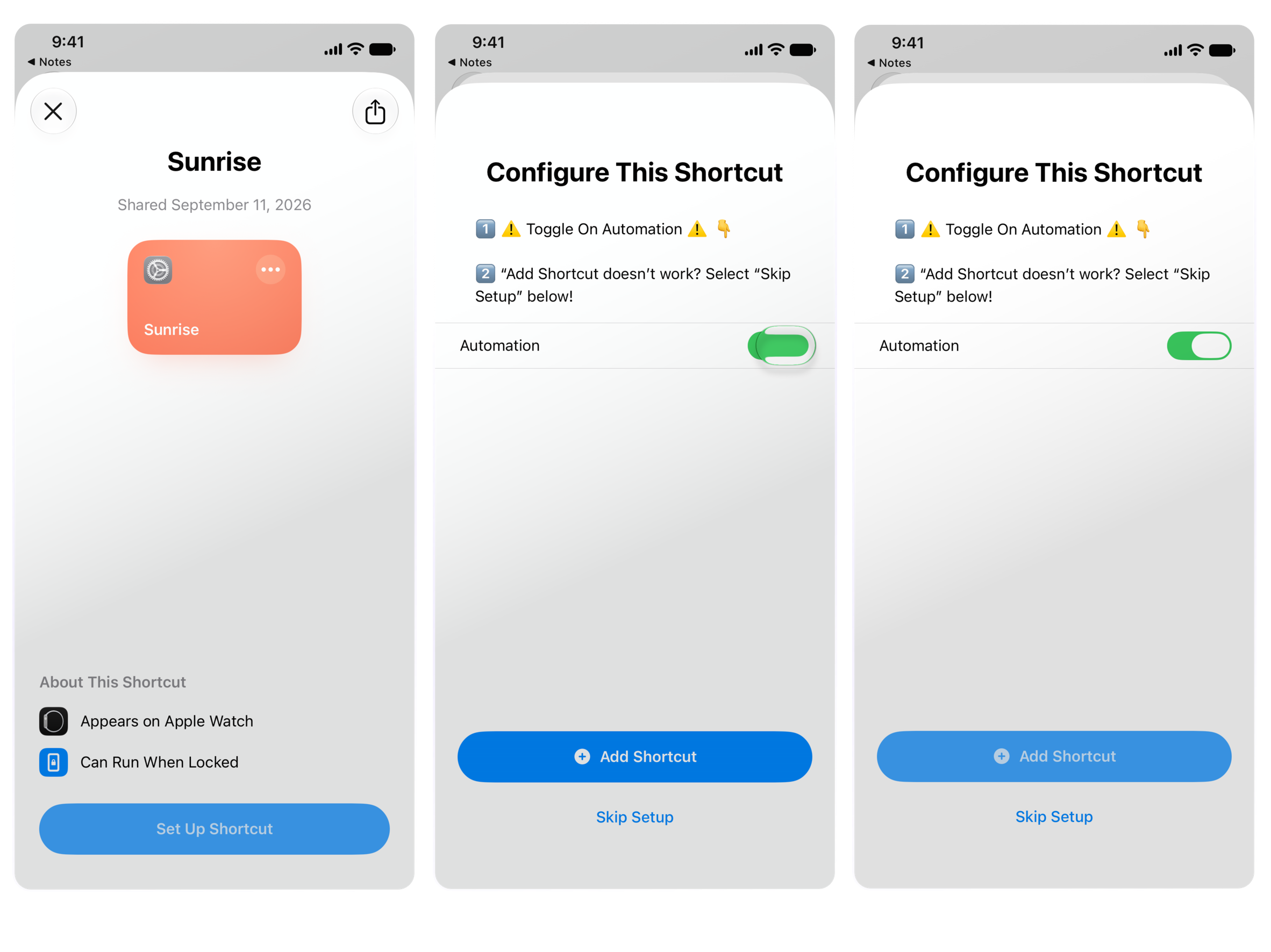
Step 2: Follow the import dialog inside Shortcuts:
- Don’t forget to ***⚠️ Turn on the Automation ***inside the setup flow.
- In case the Add Shortcut button doesn’t work in the last step, you can press on Skip Setup as a workaround. This is a known issue which we have reported to Apple early on during the beta cycle of iOS 27: FB24252363. However, until now, it has not been addressed.
How to automatically Set Up Black and White Mode with Shortcuts Automations on iOS 26 and below
Follow these steps to automate its activation and deactivation:
Step 1: Open Shortcuts
- Open the Shortcuts app on your phone.
- Navigate to the Automations tab.
Step 2: Create a New Automation
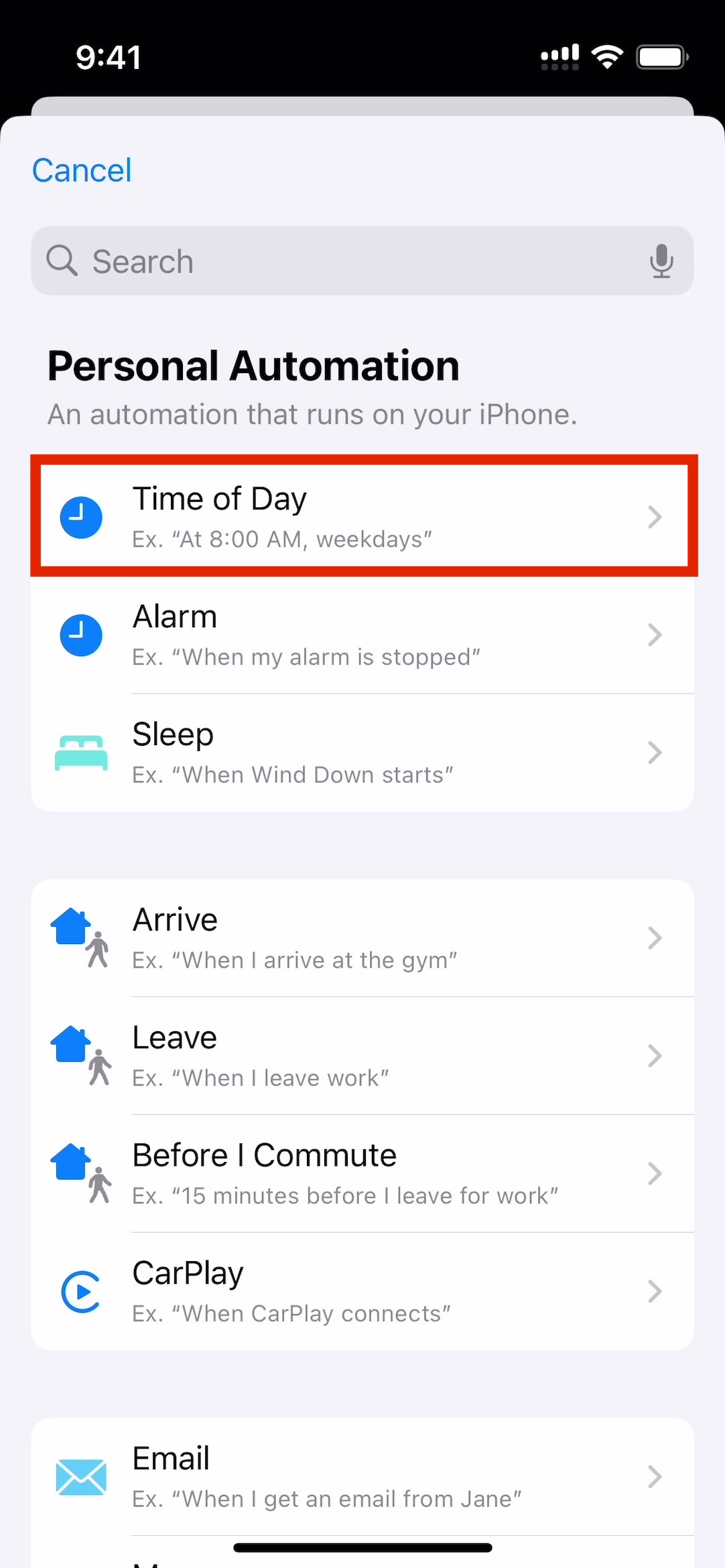
- Tap the “+” button to create a new automation.

- Select a trigger based on your preferences:
- At a Specific Time: Choose this if you want the filter to activate at sunset, bedtime, or during work hours.
- When Focus Mode is Enabled: Link the filter to specific Focus modes, like "Do Not Disturb" or "Work" or “Sleep”.
- When Opening a Specific App: Enable the filter when certain apps are opened, like social media or streaming apps.
Step 3: Configure the Automation
- After selecting your trigger, enable Run Immediately and tap Next to choose New Blank Automation.

- Search for “Set Color Filter” in the action menu.

- Select Turn On to enable the Black and White filter.
- Save your automation.

Step 4: Create a Deactivation Automation
- Repeat the steps above to create another automation.
- This time, configure the action to Turn Off the Black and White filter at a specific time (e.g. sunrise) or after a Focus mode ends.
Lucas Strehle
May 6, 2026