Making one sec truly bullet-proof with iOS 26.4
Over the past year, we’ve been working closely with Apple to address one of the most-requested features of one sec: making one sec a bullet-proof screen time companion:
No way to cheat, no way to turn it off anymore!
👀
TL;DR: Apple has updated its Screen Time Lock capabilities to apply to one sec as well. Enable it under in iOS Settings -> Screen Time -> Lock Screen Time Settings.
Users set up one sec with a long-term goal in mind: getting their screen time under control, and getting more intentional about their social media habits.
But of course, reality comes in-between: one sec is frustrating, that’s why it works so well: 57% reduction of screen time on average, as shown in our research.
That frustration can also backfire: in weak moments, some users might turn one sec off. Days later they might regret their decision and un-do this. But then it’s too late and they have already lost hours to the algorithm again.
So users kept asking us:
“Can you make one sec bullet-proof?”
Of course, we could not do this by ourselves since this depends deeply on system-level frameworks.
We had to team up with Apple to implement a new mechanism into iOS.
And I am very happy to announce that with iOS 26.4, you can finally lock the screen time permission for one sec with a code. This will also turn off the ability to uninstall one sec.
So really: a strict and bullet proof way to prevent yourself from turning off blocks and interventions.
How can I lock one sec’s Screen Time Permission permanently?
To turn on the Screen Time Lock, open iOS Settings -> Screen Time.
Make sure that the Screen Time permission is turned on for one sec.
Next, select “Lock Screen Time Settings” at the bottom.

We recommend going through the flow with a close friend or relative: because you can’t know the code to lock the Screen Time settings!

Let your peer enter the new Screen Time code (optionally they can also enter their AppleID as a backup in case they forget the code, but you can also skip this).

As a result, you won’t be able to turn off Screen Time nor delete one sec: so one sec’s blocks and interventions will be permanent.
Lock one sec’s Automations in the Shortcuts App
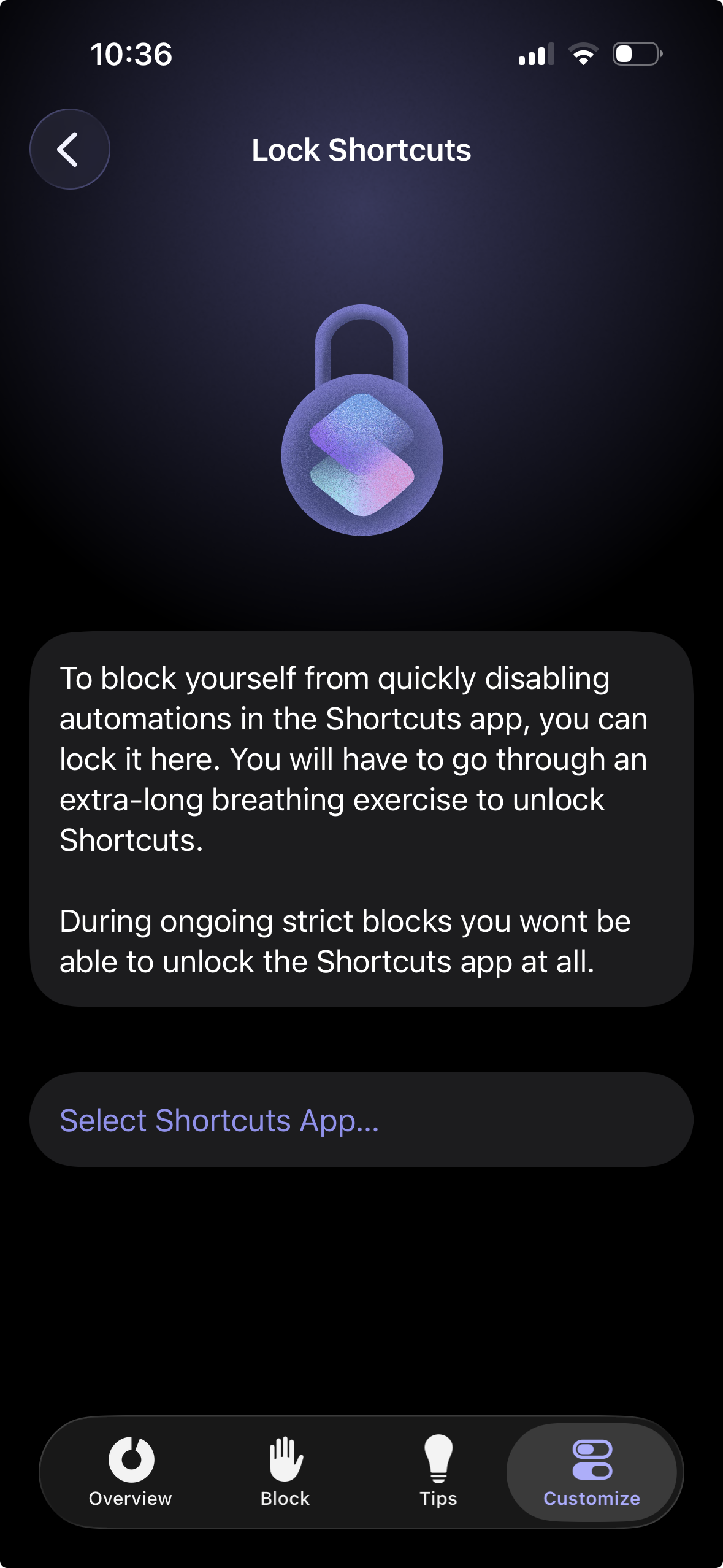
To make sure that you can’t turn off any Automations in the Shortcuts app, you can make use of one sec’s feature “Shortcuts App Lock” under “Cheat Lock”.
Lock one sec App Blocks and Block Schedules
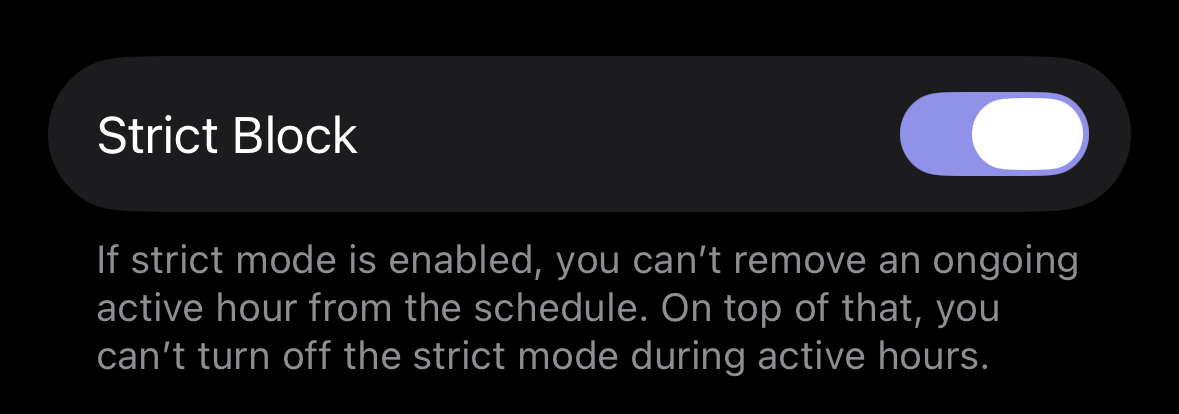
If you want to make a Block truly strict, make sure you enable the “Strict Block” mode in the Block or Block Schedule.
On top of that you should obviously follow the tutorial above to lock one sec’s Screen Time Permission.
Frederik Riedel
March 24, 2026