
How to block apps on your kid's iPhone: 100% strictly
For many parents, this scenario may be all too familiar: Your kid picked up their phone "just for a second" … and 45 minutes later, they're still on TikTok, while homework remains untouched and bedtime isn’t more than a distant memory.
By age 10, around 70% of children in the OECD countries already own a smartphone. Among 15-year-olds, that number hits 98% [How's life for children in the digital age? OECD, 2024]. Sure, there are upsides – access to information, staying connected, learning new things. But smartphones also come with a universe of content kids probably shouldn't see. And even worse: algorithms engineered by billion-dollar companies aim to keep young eyes glued to the screen for as long as possible.
That's why simply setting rules rarely sticks … and why more parents are turning to parental control tools that make the phone itself enforce the boundaries. If you're looking for something that actually holds, something your child can't just tap away, this article will show you what Apple already offers and how to build a setup that's genuinely airtight.
iPhone Parental Controls: What Apple's Screen Time Can (and Can't) do
The first place most parents land is Apple's built-in Screen Time. And yes, it's a solid starting point: no extra app needed, no subscription, already on your kid's iPhone. Here's what it lets you do:
- Set app limits to cap daily time on social media and games
- Use Downtime to schedule hours
- Enable Content Restrictions to block age-inappropriate material
- Allow your child to request an exception to the limit or restriction
- Lock everything behind a Screen Time passcode so kids can't change the settings themselves
For younger children especially, these tools can work really well. But as kids get older – and smarter about their devices – parents often start running into the same frustrations.
Where Apple's controls reach their limits:
- Limits can be ignored. When time runs out, kids can simply tap "Ignore Limit" or send a request for more time.
- Downtime has workarounds. Scheduled blocks still allow exceptions, and a determined teenager will find them.
- Settings can be changed. Older kids often know their way around iPhone settings well enough to undo restrictions entirely. Or they just delete and reinstall the restricted app … and just like that, the block is gone!
Apple's Screen Time is a great foundation for family screen time rules – but it's just not bulletproof. For parents who need something stricter, that gap matters.
How to Protect Your Kid's Phone Usage With one sec
Instead of just counting minutes, one sec lets parents create automatic rules for individual apps or app categories that the phone enforces on its own. You set it up once, and it protects your kid at the right time from getting sucked in.
This is what a setup could look like:
🏫 School hours (e.g. 8:00–15:30) Social media and games blocked automatically—so the temptation isn't even there.
🌙 Evening wind-down (after 22:00) All apps blocked. Because we all know: using screens right before bed doesn't really support a good sleep.
📚 Homework time Only educational or productive apps allowed, so focus isn't a willpower contest.
This kind of structure removes something sneaky but important: the moment of temptation. When Instagram simply isn't available at 10 PM, there's no decision to make. This way, keeping up with healthy schedules becomes way easier.
Make App Blocks Truly Strict (so They Can't Be Turned Off)
The following three steps make one sec go from helpful to bulletproof.
1. Lock Screen Time Settings
Since iOS 26.4, Screen Time settings can be locked with a passcode that only you know. Once enabled:
- one sec cannot be disabled.
- Screen Time itself cannot be turned off.
- The app cannot be deleted.
Here’s how to set it up:
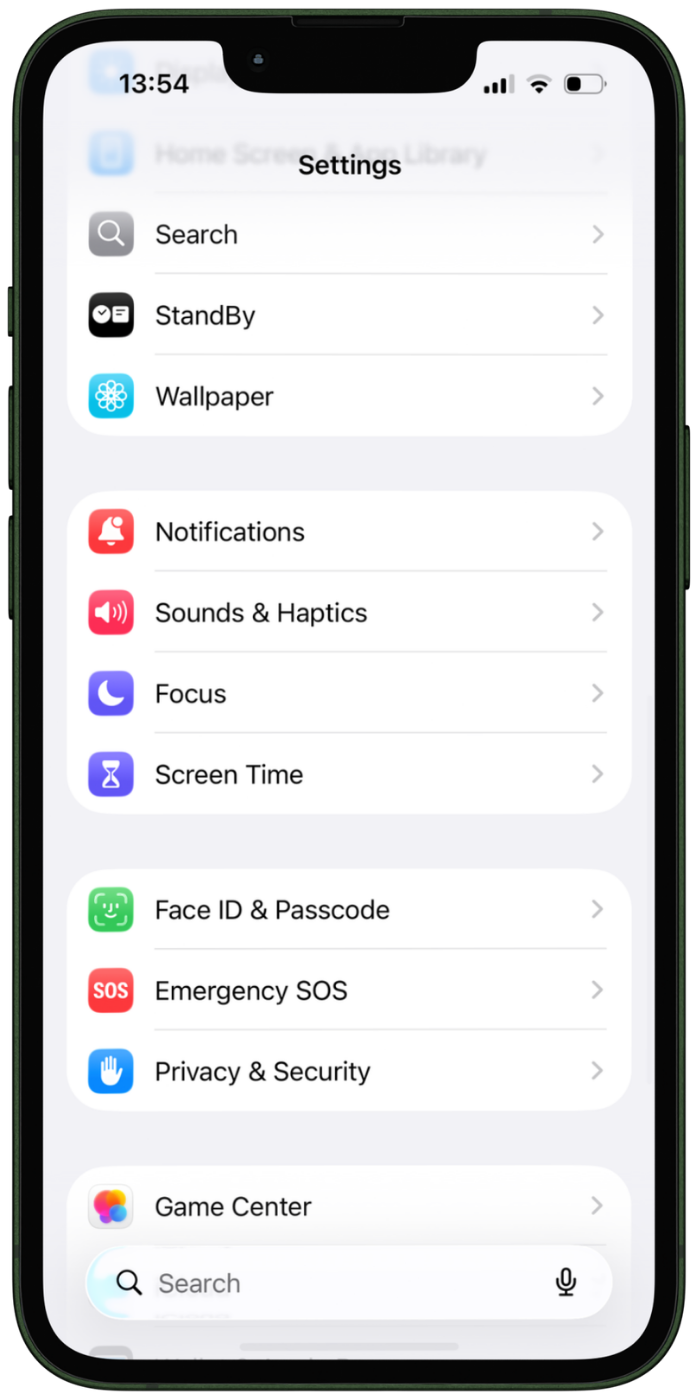
Open iOS Setting → Screen Time.
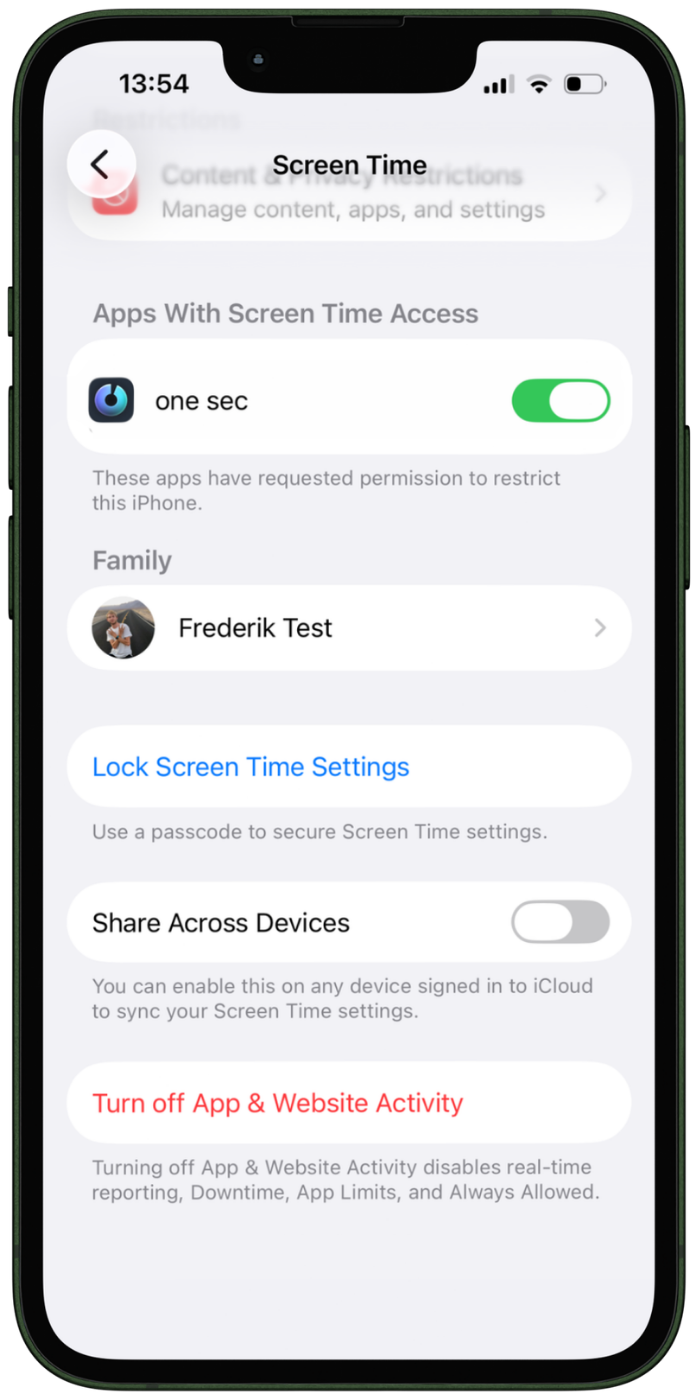
Select “Lock Screen Time Settings”.
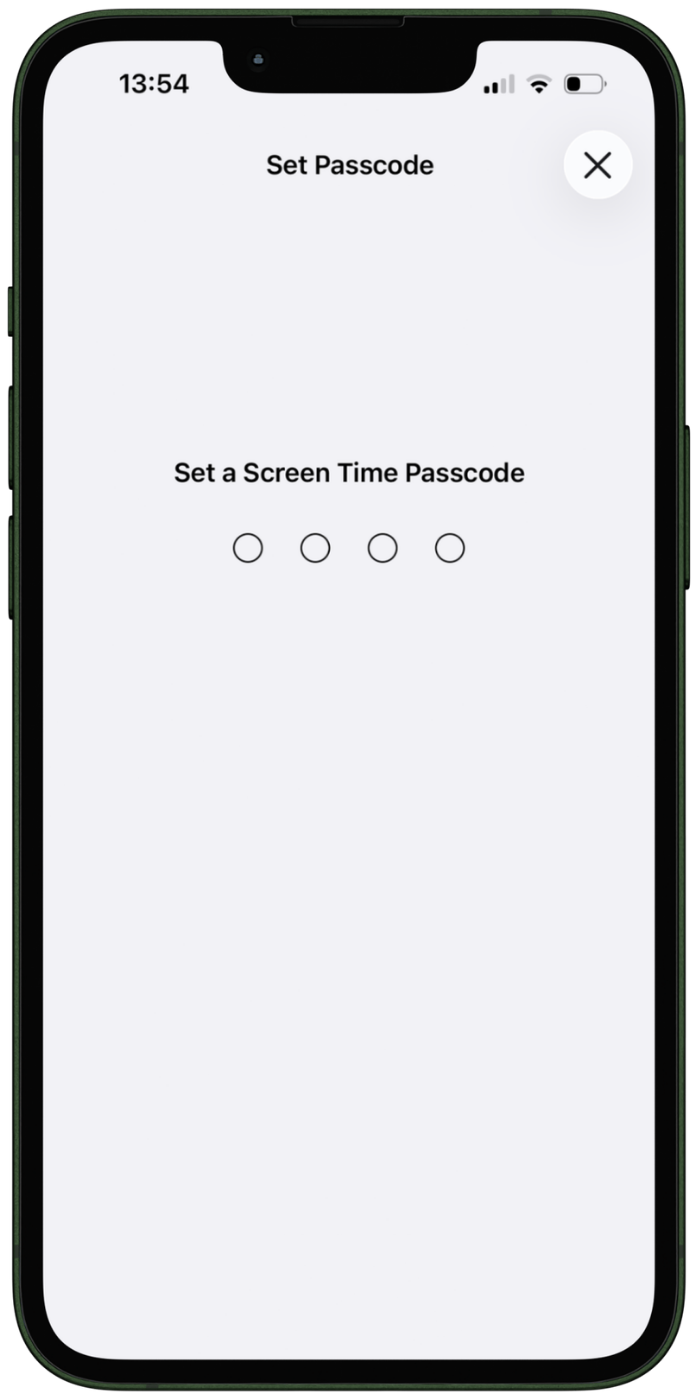
Set up the passcode.
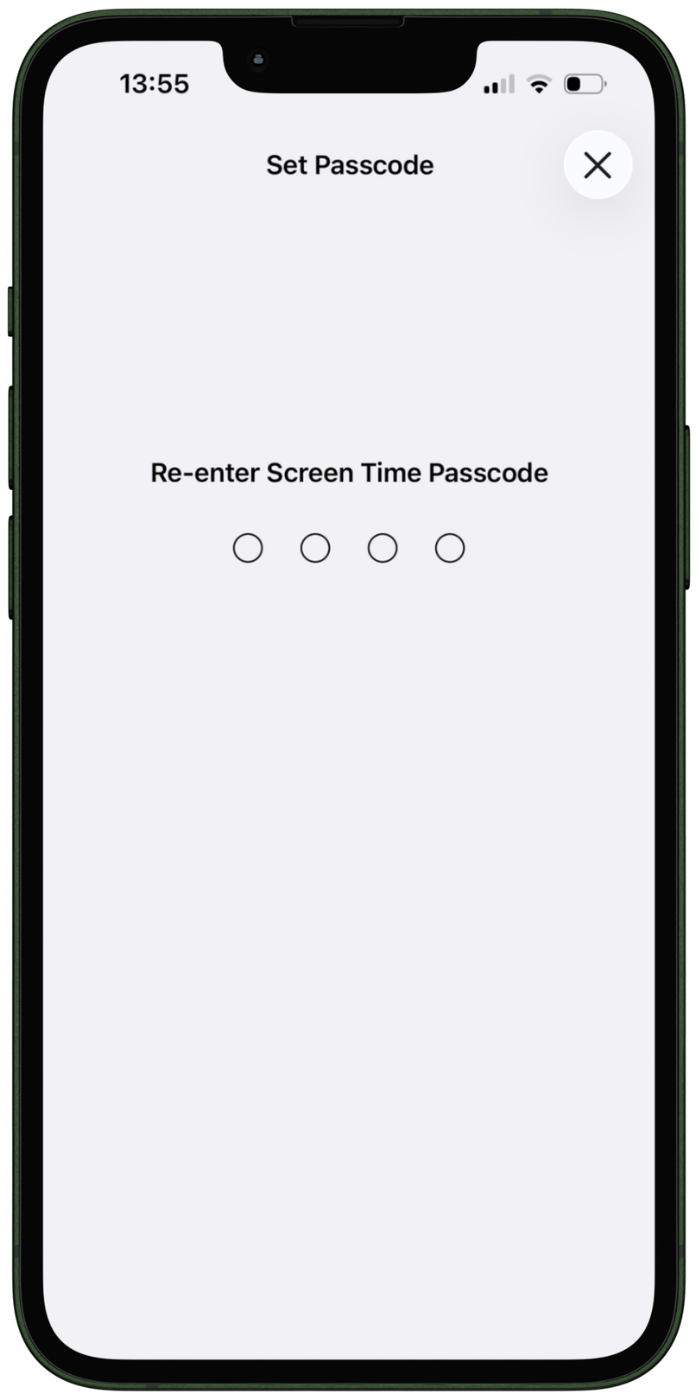
Re-enter the code.
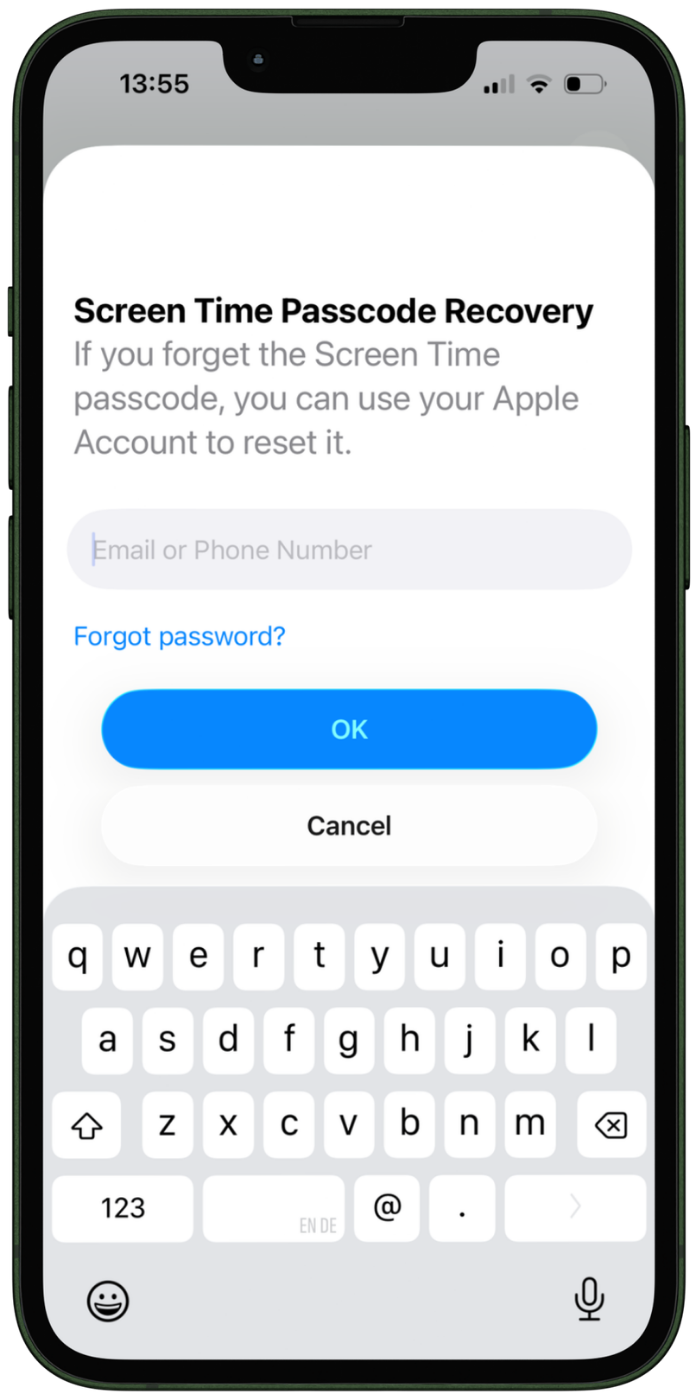
Optionally, you can connect an Apple account to reset the code in the future.
2. Lock automations in the Shortcuts app
one sec runs through Apple's Shortcuts app – which means a savvy kid could technically try to disable the automations there. one sec's Shortcuts App Lock feature closes that door, preventing automations from being switched off without your passcode. During ongoing strict blocks, it’s not possible to unlock the Shortcuts app at all.
3. Enable Strict Block Mode
If you want to make a Block truly strict, make sure you enable the Strict Block Mode in the Block or Block Schedule. This ensures blocked apps cannot be skipped or bypassed.
Together, these three layers create something rare in the world of parental controls: a setup that's completely strict.
What About Adult Content?
Inappropriate content is another area where Apple's built-in settings don't quite cut it—mostly because a determined kid or teenager can find and undo them without much effort. one sec's Adult Content Detox feature takes a more robust approach. It works at the system level, meaning it filters adult content across all browsers and web views on the phone – Safari, Chrome, Firefox, DuckDuckGo – not just one. And because it operates system-wide, your child can't simply switch browsers to get around it.
For parents who want an extra layer of certainty, the feature can also be locked for a set period (10 days, one month, or permanently), making it impossible to disable without the Screen Time passcode.
Learn more about the feature here.
Bring Them on Board!
Please note: the biggest factor in whether a parental control setup actually works long-term is whether your kid feels involved in it. Before configuring everything, sit down together and talk through what excessive screen time actually does – to sleep, to focus, to mood. Agreeing on schedules as a family rather than handing them down makes a real difference in how willingly kids stick to them.
By the way, this isn't just intuition. one sec participated in a research project with the Danish government tracking teenagers' relationship with screen time, and the results were striking. Many teenagers genuinely identified high screen time as a problem for themselves and wanted to change it – so much so that most chose to keep using one sec even after the research project ended.
If hard blocks feel like too big a first step, interventions are worth trying first**.** Rather than blocking an app outright, they create a small moment of friction before opening it, making the habit conscious rather than automatic. In practice, kids tend to respond to them much better emotionally than to outright restrictions – which makes them a surprisingly powerful tool for building genuine self-awareness rather than just enforcing compliance.
Check out one sec and try it for free!
Sources
- OECD. (2024). How's life for children in the digital age? OECD Publishing. https://www.oecd.org/en/publications/how-s-life-for-children-in-the-digital-age_0854b900-en/full-report/introduction-and-main-findings_67c79516.html
FAQ
Can kids bypass Apple’s Screen Time limits?
In many cases, children can bypass limits by selecting “Ignore Limit**”** or requesting additional time. If Screen Time settings are protected with a passcode and locked, bypassing becomes much harder.
What makes one sec a truly reliable parental control app?
A reliable parental control app allows parents not only to block apps on their child’s device, on a schedule or completely. It should also prevent children from disabling the restrictions. one sec offers a bulletproof setup, not allowing the device owner to bypass restrictions or delete the app.
Can I block social media during school hours?
Yes. With block schedules, parents can block apps like social media platforms during school hours and automatically re-enable them afterward.
How do I stop my child from turning off parental controls?
Parents can lock Screen Time settings with a passcode so the controls cannot be disabled or removed.
Elena Geiger
May 4, 2026