
When one sec gets too annoying: how to enable intentional app switching
Sometimes it’s necessary to leave social media and quickly switch between apps: to check contact info, a note, or a location in Maps.
The goal of one sec is not to disrupt any productive workflows, that’s why we decided to offer a secondary Shortcut that can be executed when closing an app. This allows us to measure time between closing and re-opening the app, allowing you to re-open the app within certain time limits.
Step 1
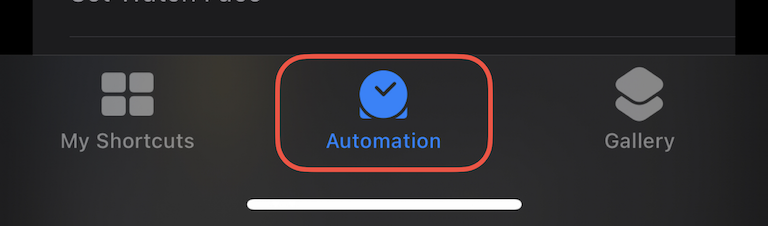
On your iPhone, open the Shortcuts app and go to the Automation tab.
Step 2
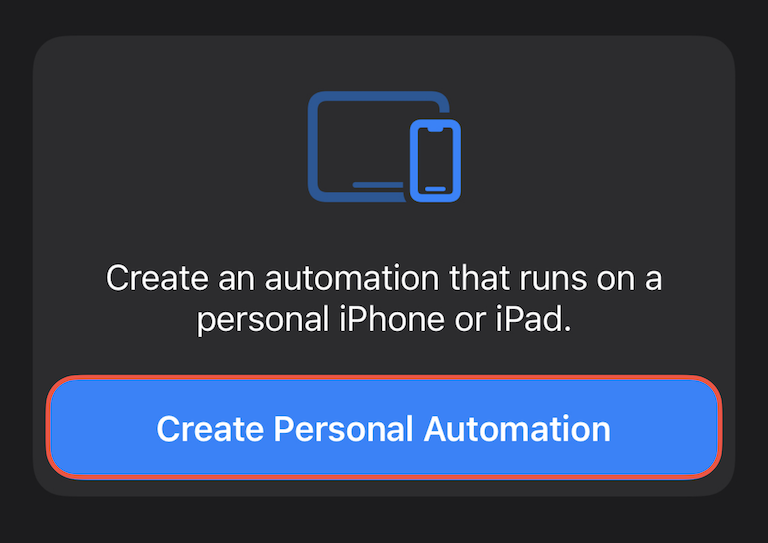
Go to the Automation tab and select + to create another Personal Automation.
Step 3
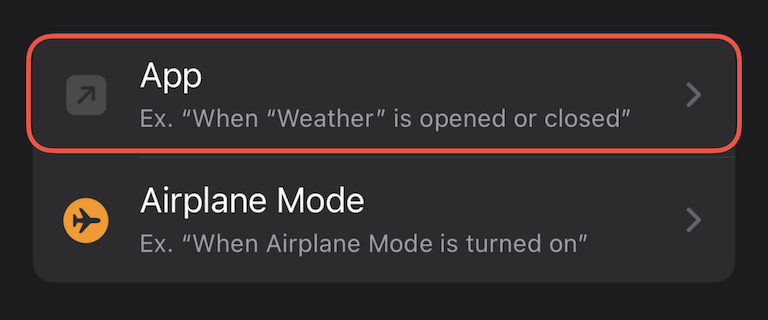
Scroll down and select App.
Step 4
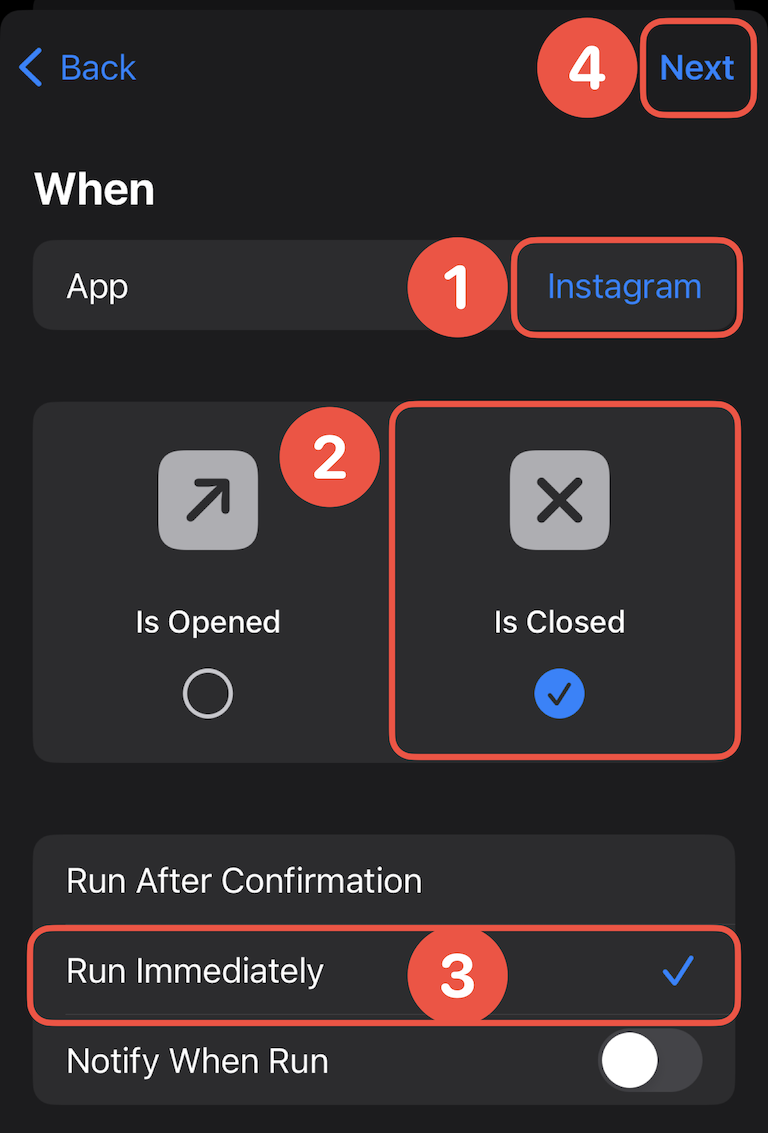
Choose the app you’d like to configure the intentional app switching for.
⚠️ Only select one app here. A separate automation is required for each app.
Be sure that only “Is Closed“ is selected.
At the bottom, select Run Immediately.
Then, continue to the next page.
Step 5
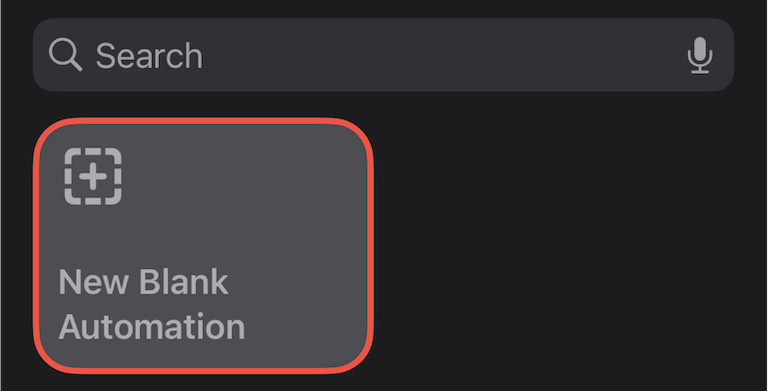
Select New Blank Automation.
⚠️ If you don’t see this option, you’re running an older iOS version. Please refer to the old tutorial.
Step 6
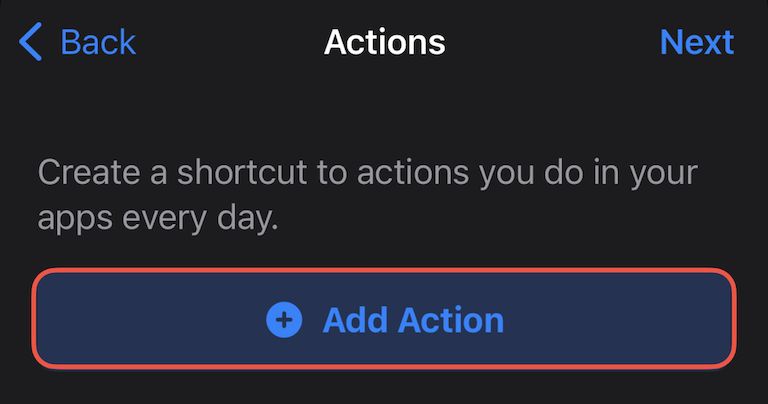
Tap Add Action.
Step 7
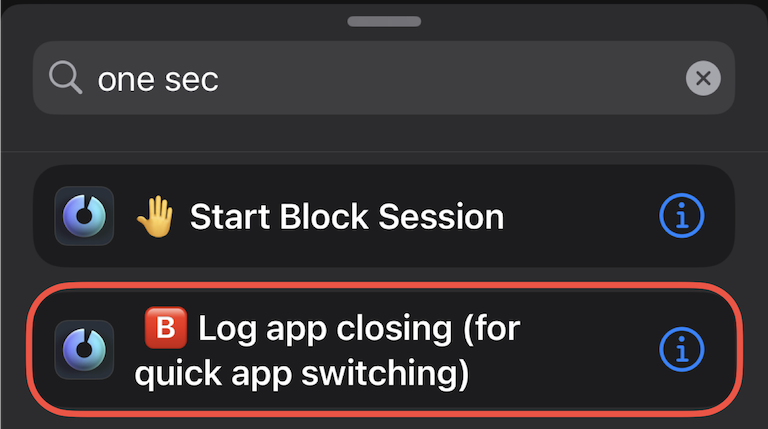
Search for “one sec” and select 🅱️ Log app closing (for quick app switching).
Step 8
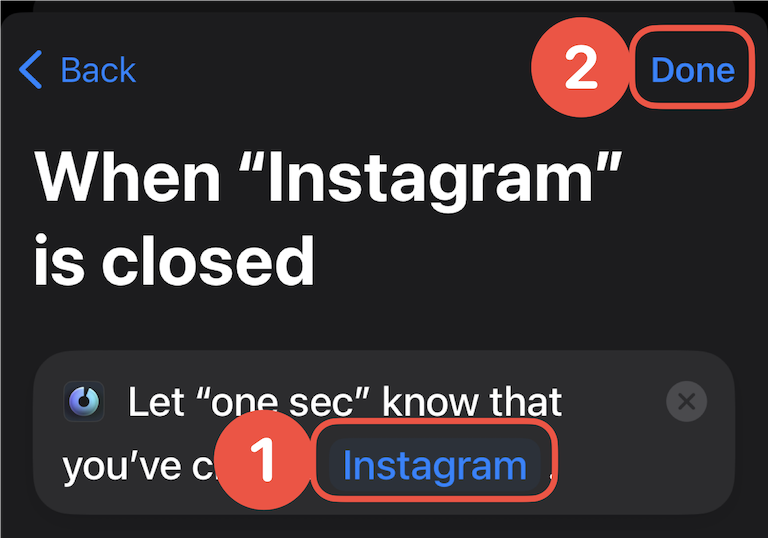
Tap App (must be selected⚠️) in order to re-select the previously selected app.
The Automation won’t run without this.
Then tap Done and you’re done!
Frederik Riedel
August 20, 2023