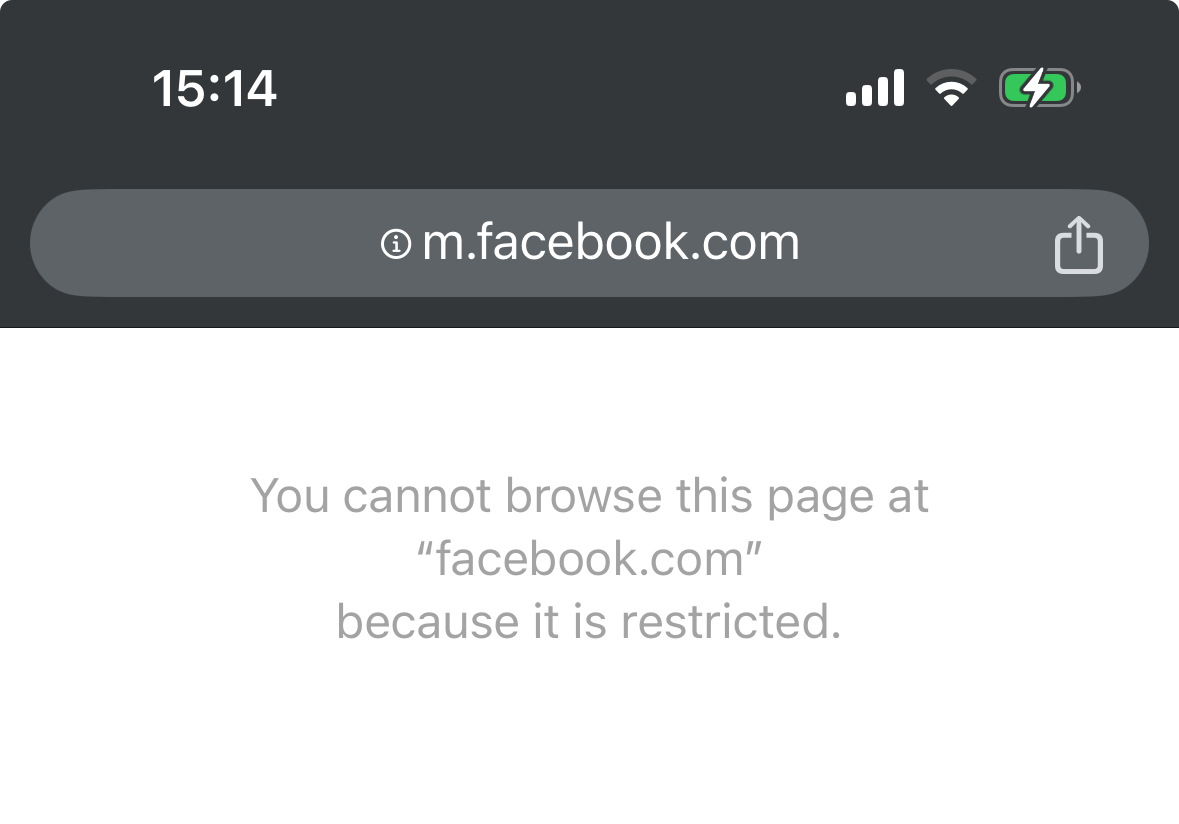
How to block websites in Safari and Chrome on your iPhone – step by step
Have you ever had the urge to block a certain website on your iPhone or iPad? Like social-media pages when you want to study?
Fortunately, there are ways to block specific websites in the iOS settings.
The problem is…
Once a site is blocked, it’s quite a pain to reverse the process and allow the website again.
This makes it less ideal if you want to gain more control over your smartphone use but still need occasional access to blocked websites (or block them only for a short time, or during specific hours).
In this case, you can use the free app one sec.
Block websites with iOS’ Screen Time controls
Blocking websites in Safari on iPhone is simple with the built-in screen time controls.
Follow these steps:
- Open Settings
- Go to Screen Time
- If you haven’t enabled it, tap Turn On Screen Time and follow the setup instructions.
- Enable Content & Privacy Restrictions
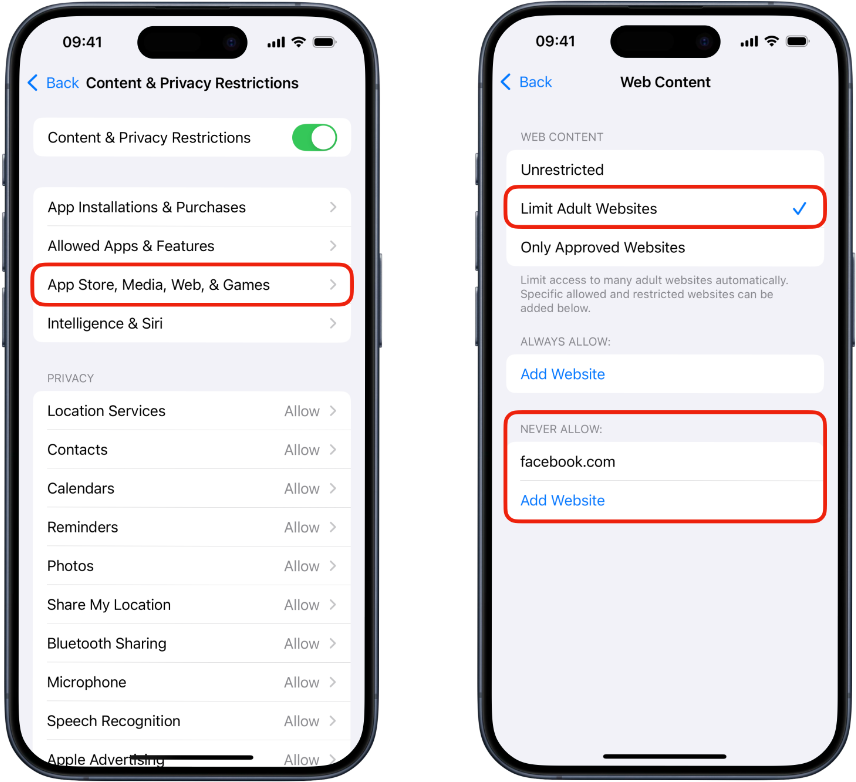
- Access App Store, Media, Web, & Games
- Select Web Content
- Select Limit Adult Websites
- Tap Never Allow → Add Website
- Enter the URL of the website you want to block
- Confirm by going Back
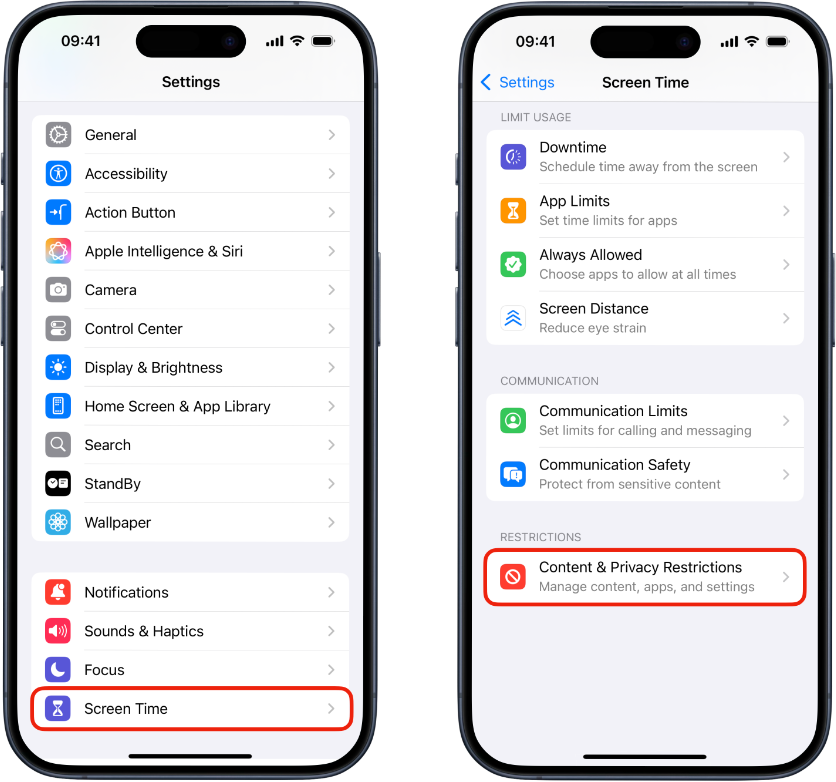
Repeat for every website you want to block.
You can remove or edit blocked sites anytime by revisiting the Never Allow list under Web Content.
In case the blocking mechanism doesn’t work, visit the website in Safari and copy the URL – you might have added the wrong one in the block list. By the way: Some websites have separate mobile versions, which you may need to block individually.
Now, you’ve successfully blocked a website in Safari – meaning you can’t visit this website until you change the settings. But what if you want or need occasional access? What if you aim to achieve a healthier smartphone use and still keep freedom of choice?
The app one sec (free with in-app purchases) was invented to help people become more intentional with website browsing. It forces you to go through a breathing exercise before accessing a website you’ve configured the app for, breaking the instant reward association of browsing.
On top of that, one sec supports many different options to block access to websites completely: on-demand, scheduled, right after waking up, for forever:
How to block websites with one sec
On-Demand Block
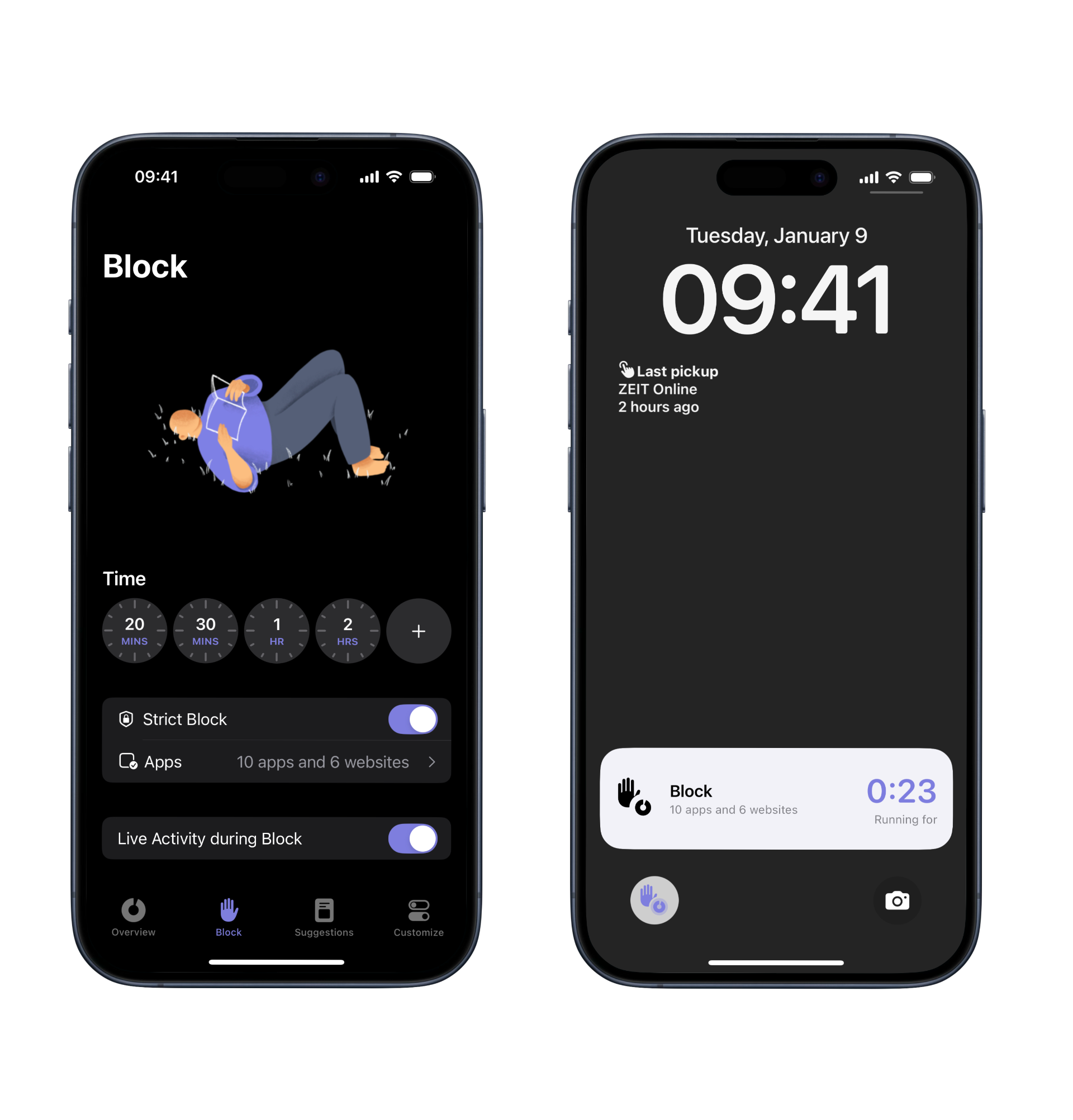
One of the most useful ways to block websites is on demand: when you just need to focus for two hours on your homework or on an important project, you can enable the block for a specified amount of time.
one sec can even show a live activity accompanying your through your task – so you also know when it’s time to take a break.
If you just need a quick way to start a block you can also add a little button to your Lock Screen or Control Center – so getting rid of distractions is literally just one tap away (requires iOS 18).
Scheduled Block
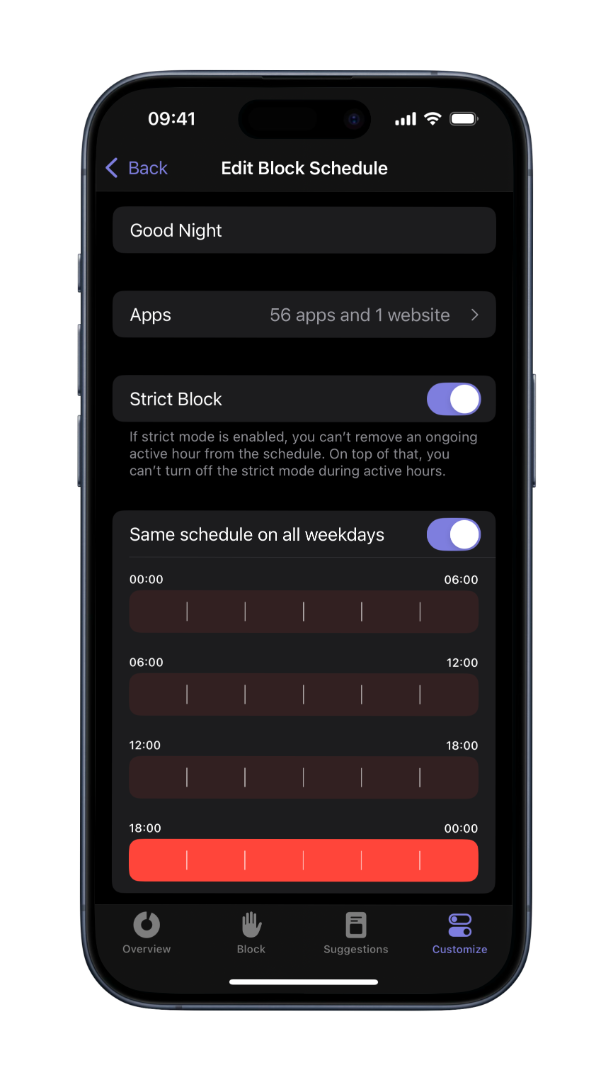
When you have recurring events for which you’d like to block certain sites (e.g. in the morning, during work hours, or on the weekend), you can do so via a scheduled block.
Open one sec’s Customize tab and select Block Schedule. Add websites and select all hours for which you’d like the block to be active. You can also set up different schedules for each day of the week if necessary.
Phone-free mornings
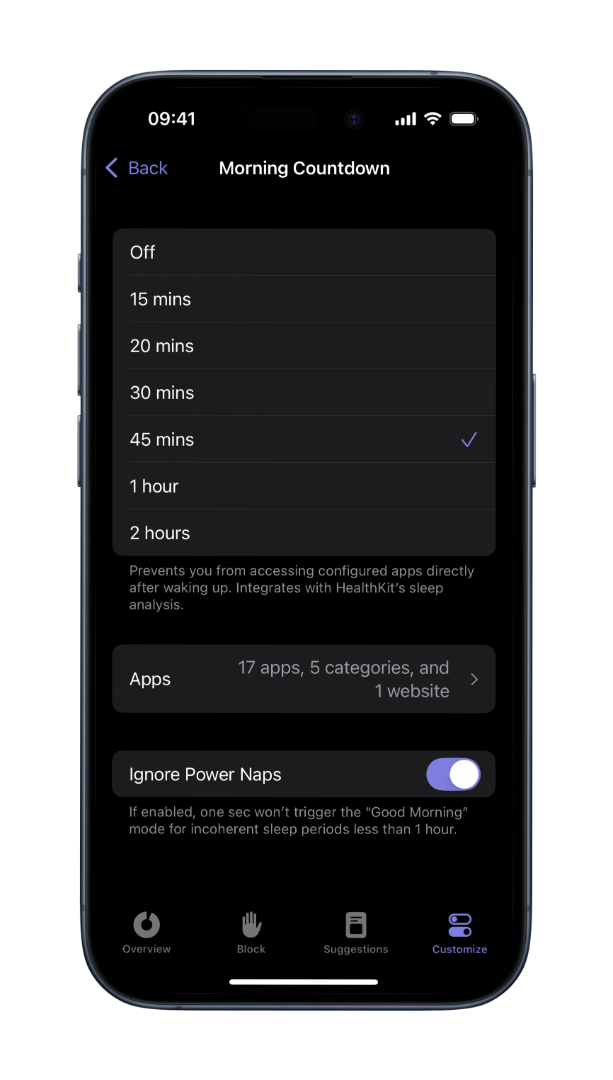
You can also connect one sec to Apple’s Health app, in order to detect when you’re waking up. one sec will then block selected websites for the specified time interval: so you can start your day screen-free.
Open one sec’s Customize tab and select Block Schedule. Add websites and select all hours for which you’d like the block to be active. You can also set up different schedules for each day of the week if necessary.
Block Adult Content Forever
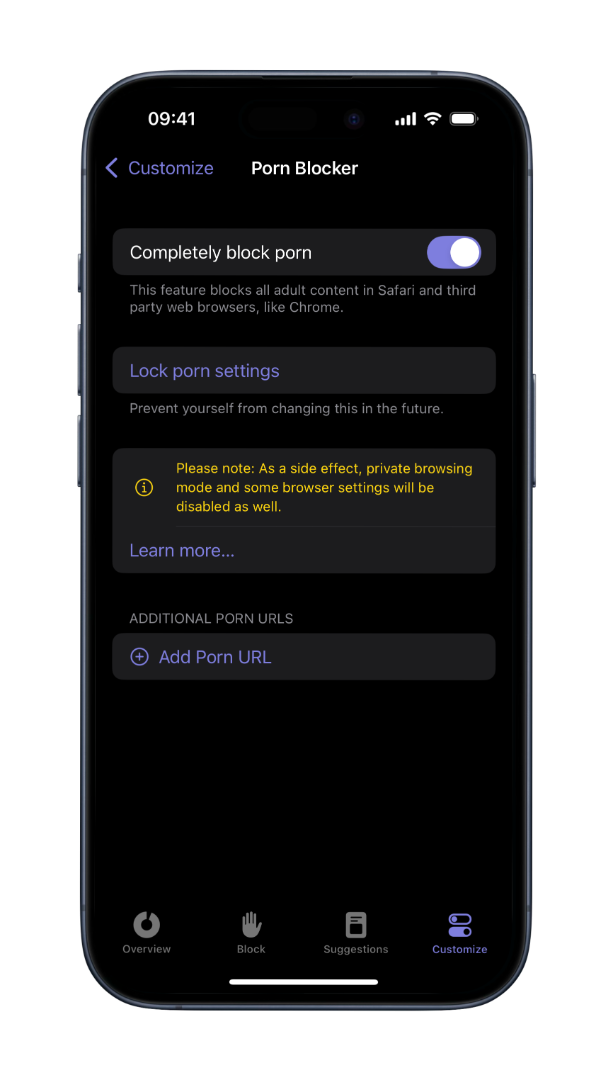
one sec also contains an automatic adult content detox, that can be expanded with your own custom urls as well. You can even lock the settings so you can’t modify them later.
Delayed Access: Remove Instant Gratification
What makes one sec so special is, that instead of blocking websites, you can also delay access to them. This removes instant dopamine and you get a chance to think twice: do I really want to open that particular app right now? To set it up, follow the instructions to add the Safari extension for one sec.
Prevent yourself from bypassing the block
A block only works if you can’t simply turn it off in a weak moment. That’s why one sec can now be made truly strict.
With recent iOS updates, Apple allows Screen Time settings to be locked with a passcode. Once enabled, Screen Time permissions for one sec cannot be changed — which means one sec cannot be disabled or deleted.
Combined with Strict Block mode and one sec’s Shortcuts App Lock, this creates a setup where your blocks stay in place.
Here’s how to set it up:
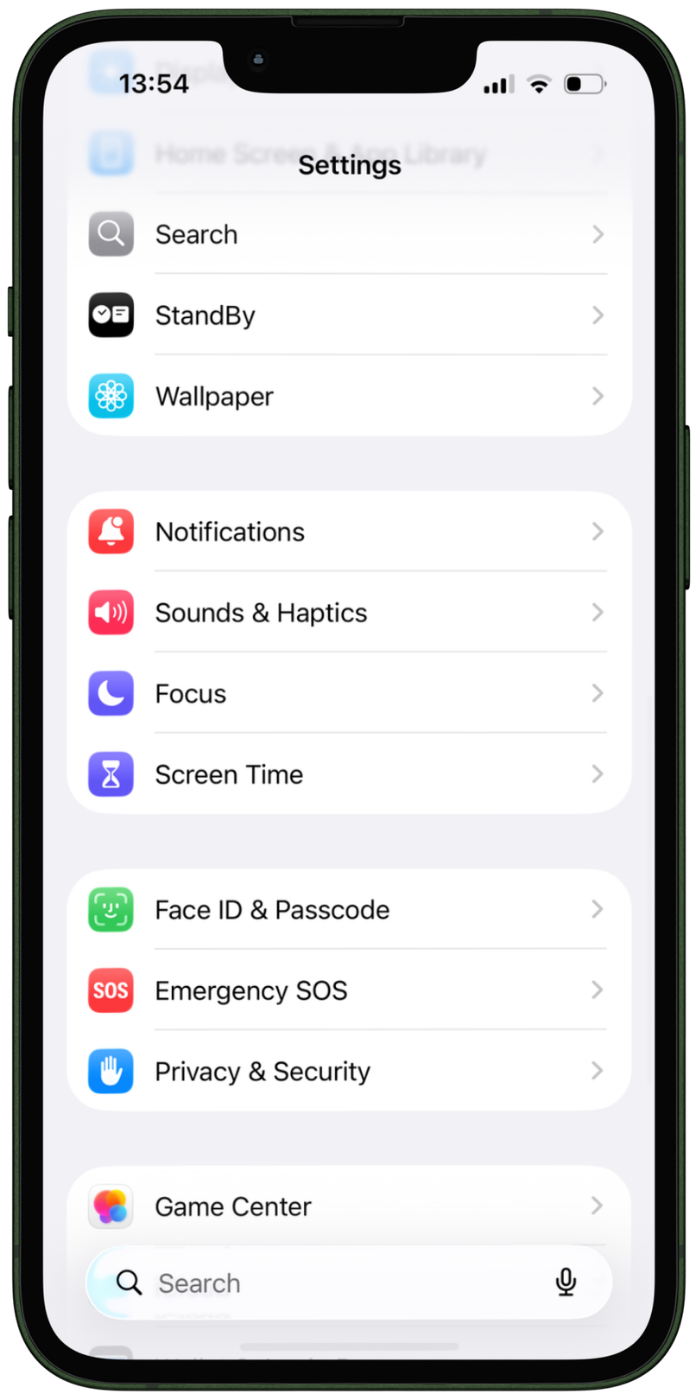
Open iOS Setting → Screen Time.
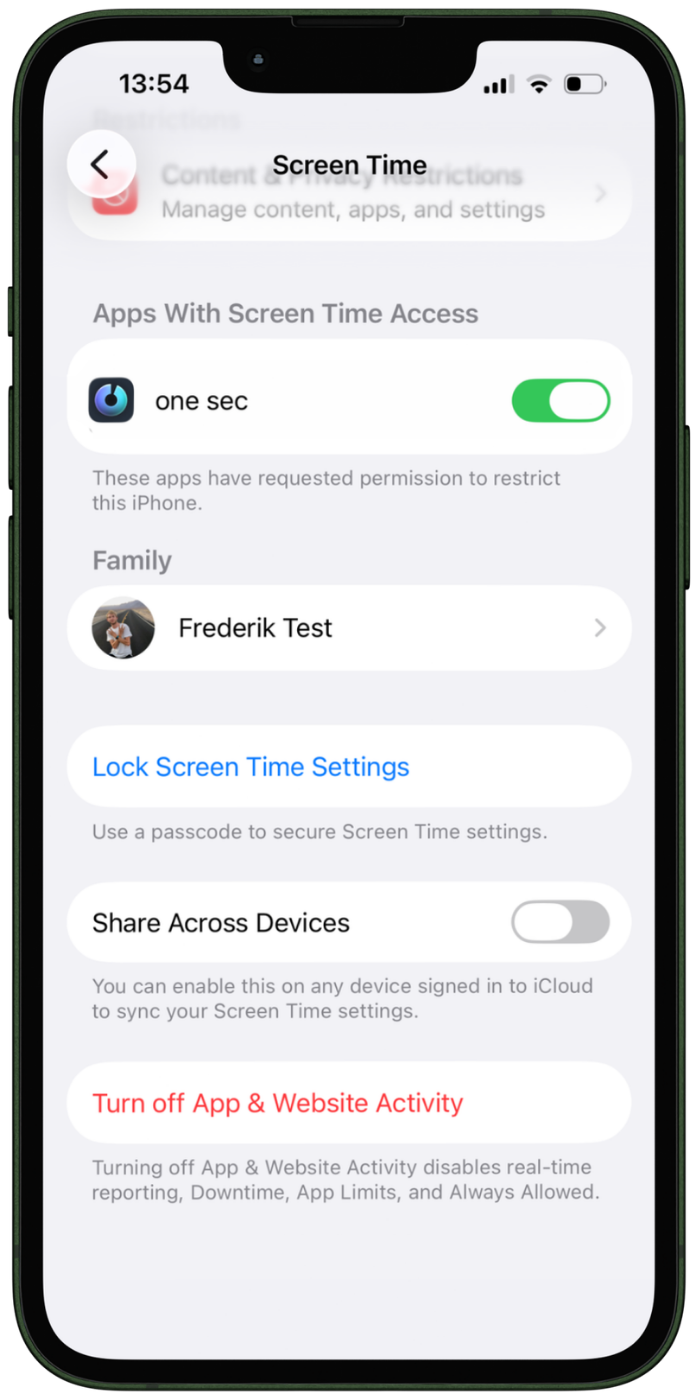
Select “Lock Screen Time Settings”.
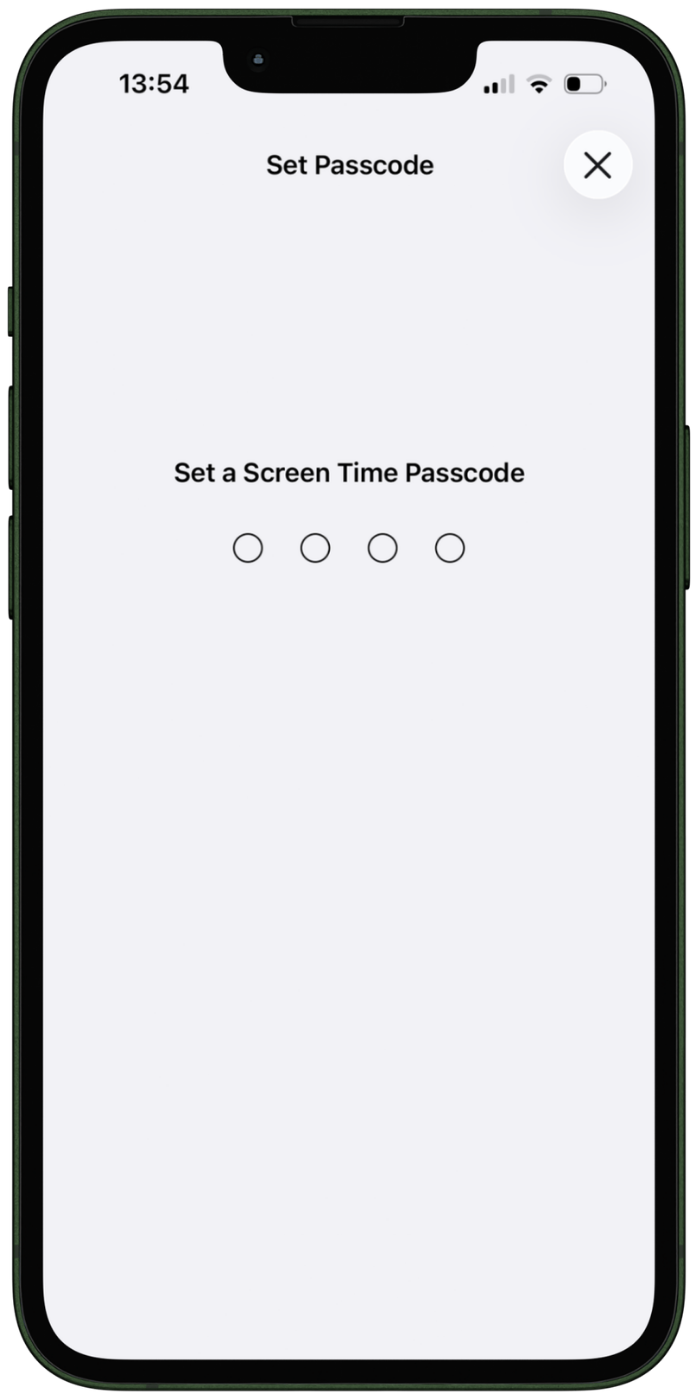
Have a close friend or relative set up the screen time code (so you don’t know it).
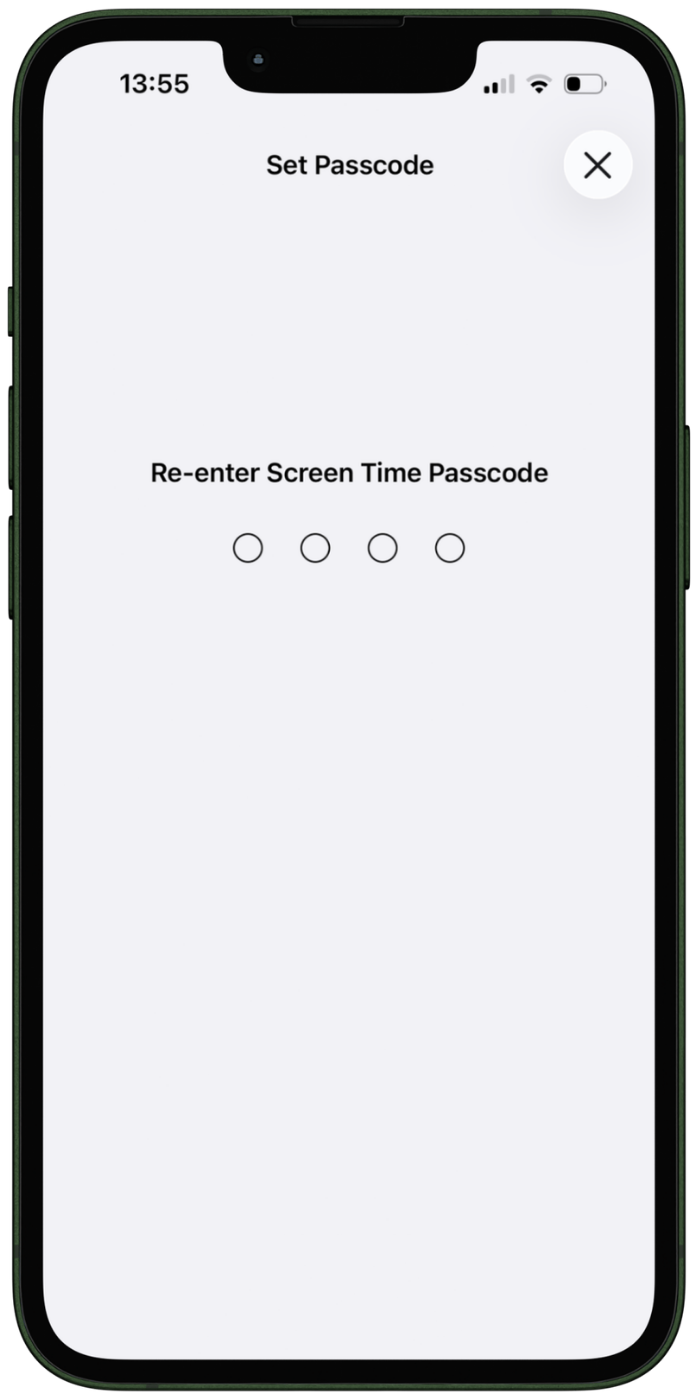
Have them re-enter the code
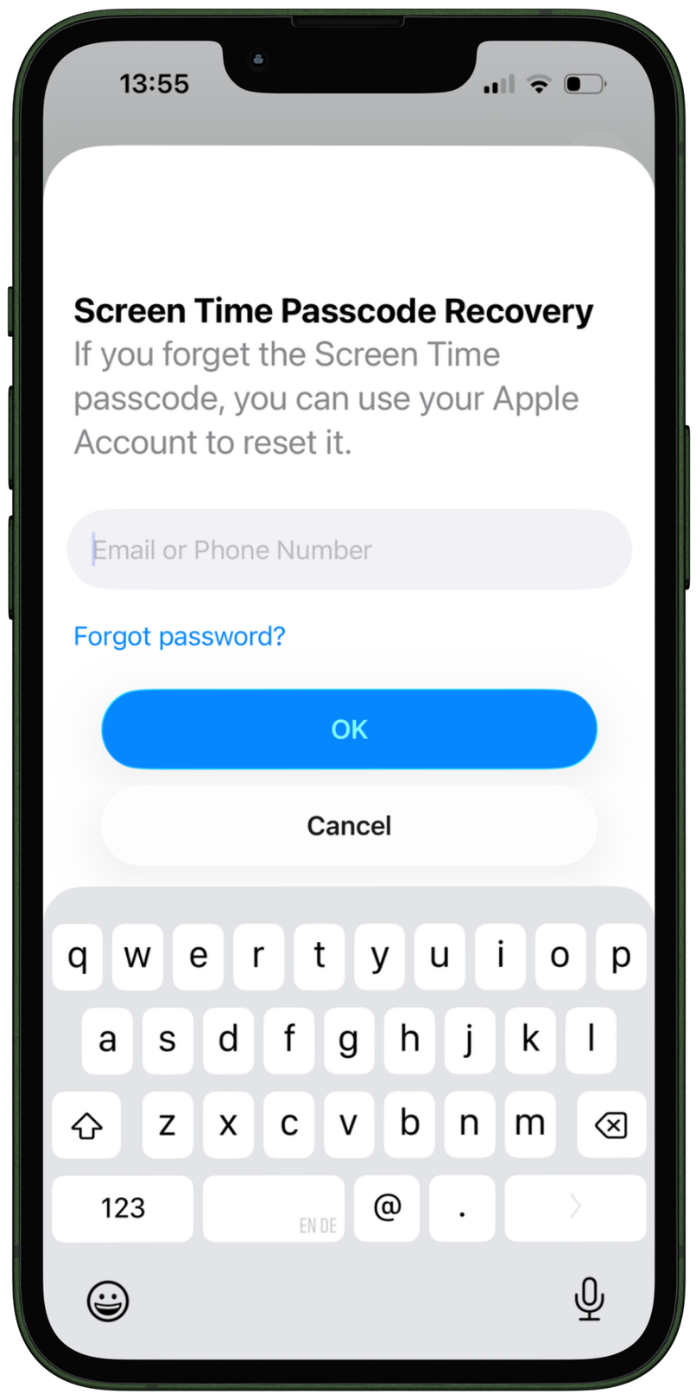
Optionally, you can connect an Apple Account to reset the code in the future.
Try it yourself! one sec’s app and website blocking is available for free.
You can also set up one sec’s intervention principle (=breathing exercise in front of distracting apps) with your most-addictive app (e.g. Instagram or TikTok).
Elena Geiger
February 10, 2022